

Table of Contents
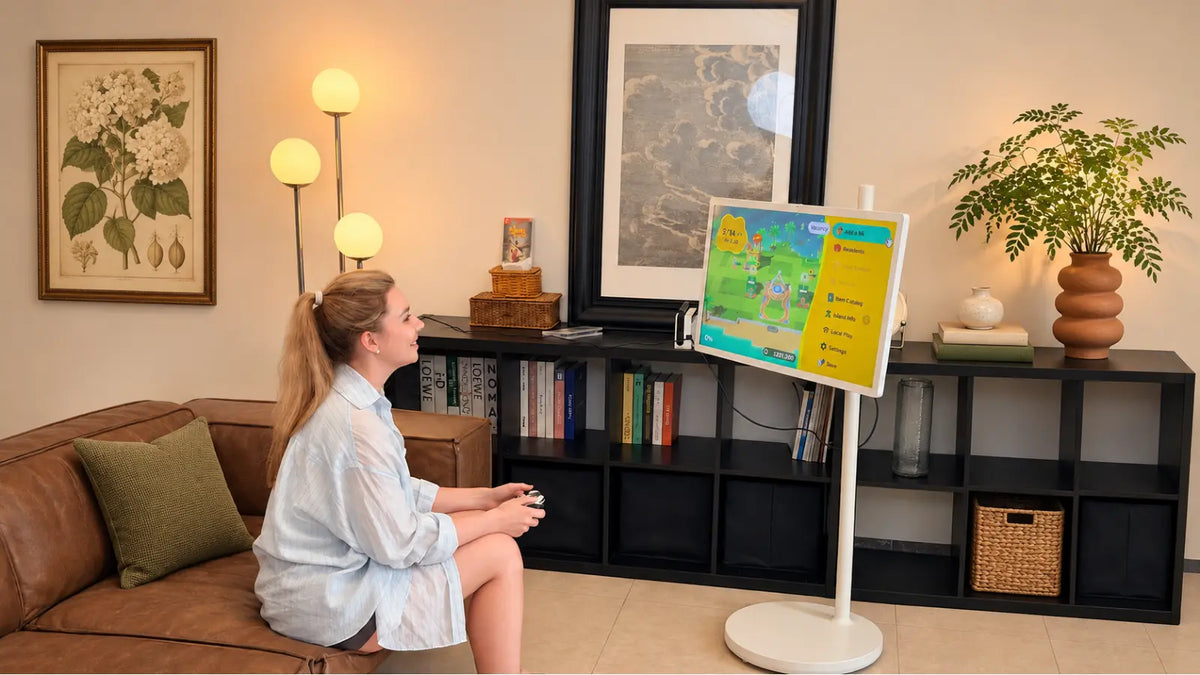
You can connect a Nintendo Switch to a GFF portable TV through its HDMI port, and it takes about a minute. The screen has a built-in battery in its base, so it runs wirelessly. The only thing that needs a wall socket is the Switch dock.
Want to play Switch on a portable TV? Here's what you need, how to hook everything up, and what to do if the screen stays black.
What You’ll Need
The good news is you probably own most of this already. Here's the full list:
- Nintendo Switch dock: This comes in the box with the console, and it's the part that does the connecting.
- HDMI cable: Nintendo includes one with the Switch, so you don't need to buy anything extra.
- Dock power adapter: Also in the box. The dock won't work without it.
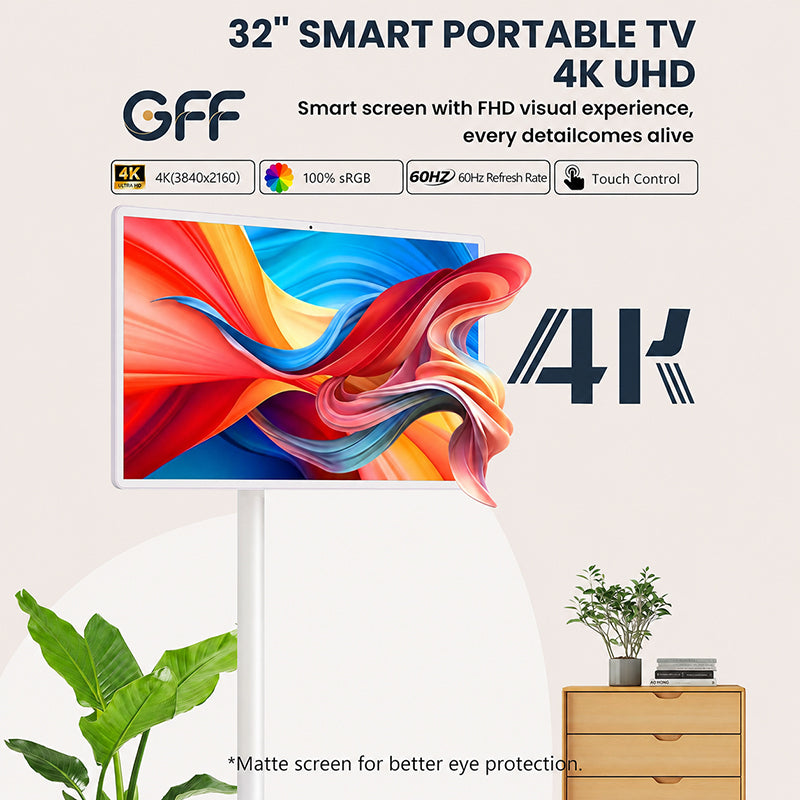
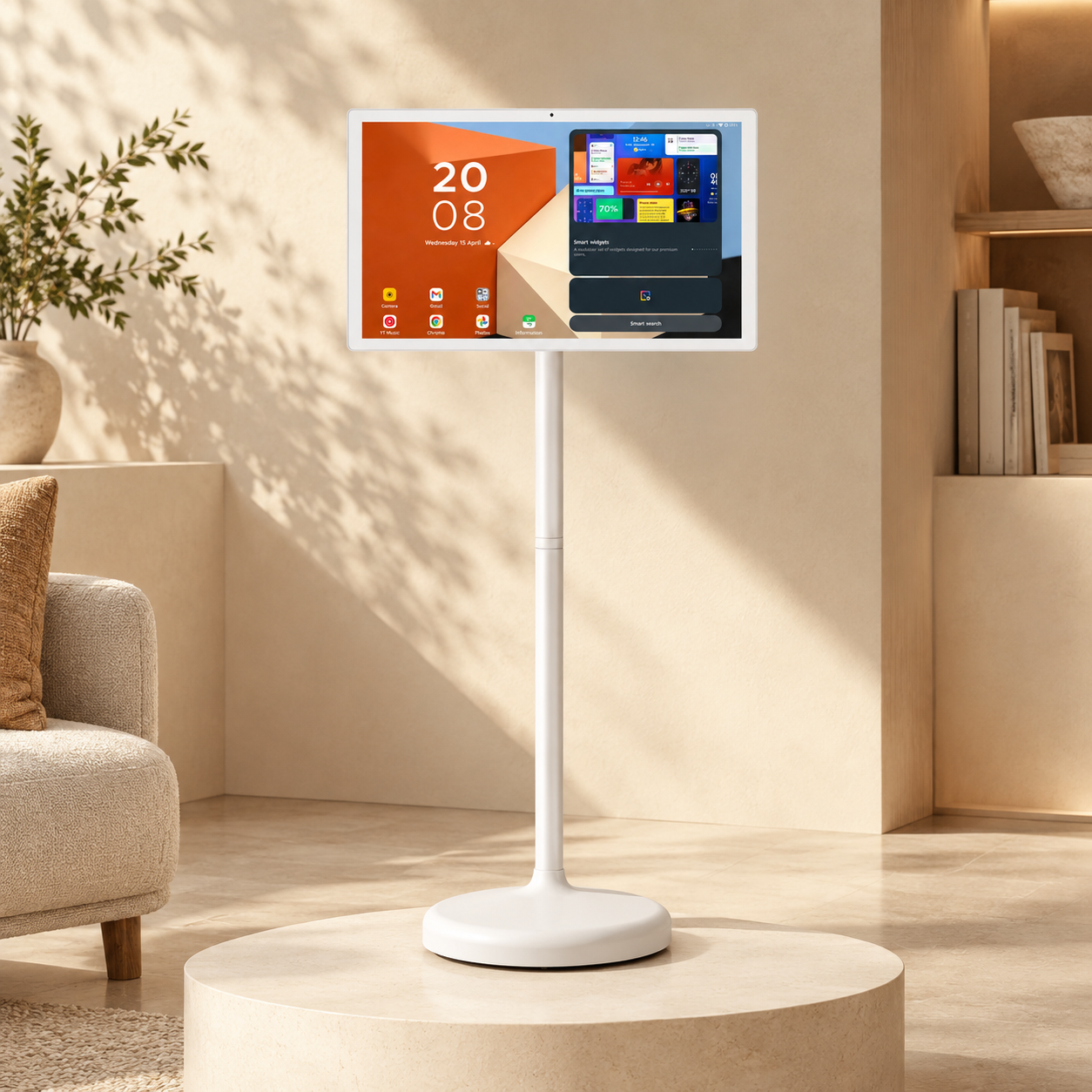
- GFF portable TV: The screen has an HDMI port, which is all the Switch needs. It runs on its built-in battery, so it doesn't have to be plugged in.
One thing to keep in mind: the screen is wireless, but the dock isn't. It still needs power, so you'll want to set up within reach of a socket.

How to Connect Your Nintendo Switch to a GFF Portable TV
If you've ever hooked a Switch up to a regular TV, you already know how this goes. It's the same process.
Step 1: Turn on the GFF portable TV.
Step 2: Plug the Switch dock into power.
Step 3: Take your HDMI cable and connect one end to the dock.
Step 4: Connect the other end to the HDMI port on the portable TV.
That's it. A prompt will pop up on the portable TV. Tap it, and your Switch screen appears. Slide the console into the dock and you're ready to play.

Can You Play Without Plugging In the Portable TV?
Yes, the portable TV works fine without being plugged in. That's what the built-in battery is for, so the screen itself can sit far away from any socket.
The Switch dock is a different story. It needs power, so keep its power cord handy and set up near an outlet. Add the HDMI cable that links the dock to the screen, and that's everything.
Here's the nice part. Since the portable TV rolls around freely, you get a lot of say in where you play. The living room, the bedroom, a corner of the garage, it's all fair game. All you need is a socket close enough to power the dock.
Check out this page for more ways to use a portable TV on wheels for home entertainment.

What to Check If Your Portable TV Says “No Signal”
Don't panic if you see "No Signal." It's almost always a quick fix. Work through these in order:
- Check the HDMI cable. Make sure both ends are pushed in all the way and the connection feels stable. A loose plug is the most common culprit.
- Check the Switch dock. Confirm it's plugged into power and the console is seated properly.
- Try another screen. If there's a different display nearby, connect the same HDMI cable to it. If it shows no signal there either, the problem is likely your Switch or dock, not the portable TV.
- Restart the portable TV. If the other screen works fine, turn the portable TV off, switch it back on, and plug the cable in again.