

Table of Contents
To turn an Android touch screen into a family digital calendar, install a shared calendar app like Google Calendar or Cozi, sign the whole household into the same shared calendar, then leave that app open on the screen somewhere your family walks past.
That's the entire setup. No drilling, no wall bracket, and in most cases no new subscription.
I put this off for a long time because I assumed a family calendar needed its own special device. It doesn't.
If you already own a portable touchscreen or a rolling TV, you already bought the expensive part. The rest took me about twenty minutes, and most of that was arguing with my family about colour coding.
What Is a Digital Calendar?
A digital calendar is simply a schedule that lives on a screen instead of on paper. A digital family calendar goes one step further, since it pulls everyone's events into a single shared view that the whole household can see and edit.
The part that actually matters isn't the software, though. It's visibility. A shared calendar sitting on your phone only works if someone opens the app, and let's be honest, nobody opens the app. Put the same calendar on a screen in the kitchen, and it starts working, because people walk past it forty times a day without trying.
That's really the whole trick. You're not buying organisation. You're buying a schedule that's hard to ignore.

Why an Android Touch Screen Works So Well for This
There are purpose-built family calendar displays out there, and some are lovely. Skylight and Hearth both make polished ones. But they do one job, they sit in one place forever, and several of them want an annual fee on top of the hardware.
An Android touch screen handles the same job differently:
- Real apps, not a locked-down menu. If the screen is Google EDLA certified, you get the actual Google Play Store. That means the genuine Google Calendar app, plus Cozi, TimeTree, or whatever your family already uses.
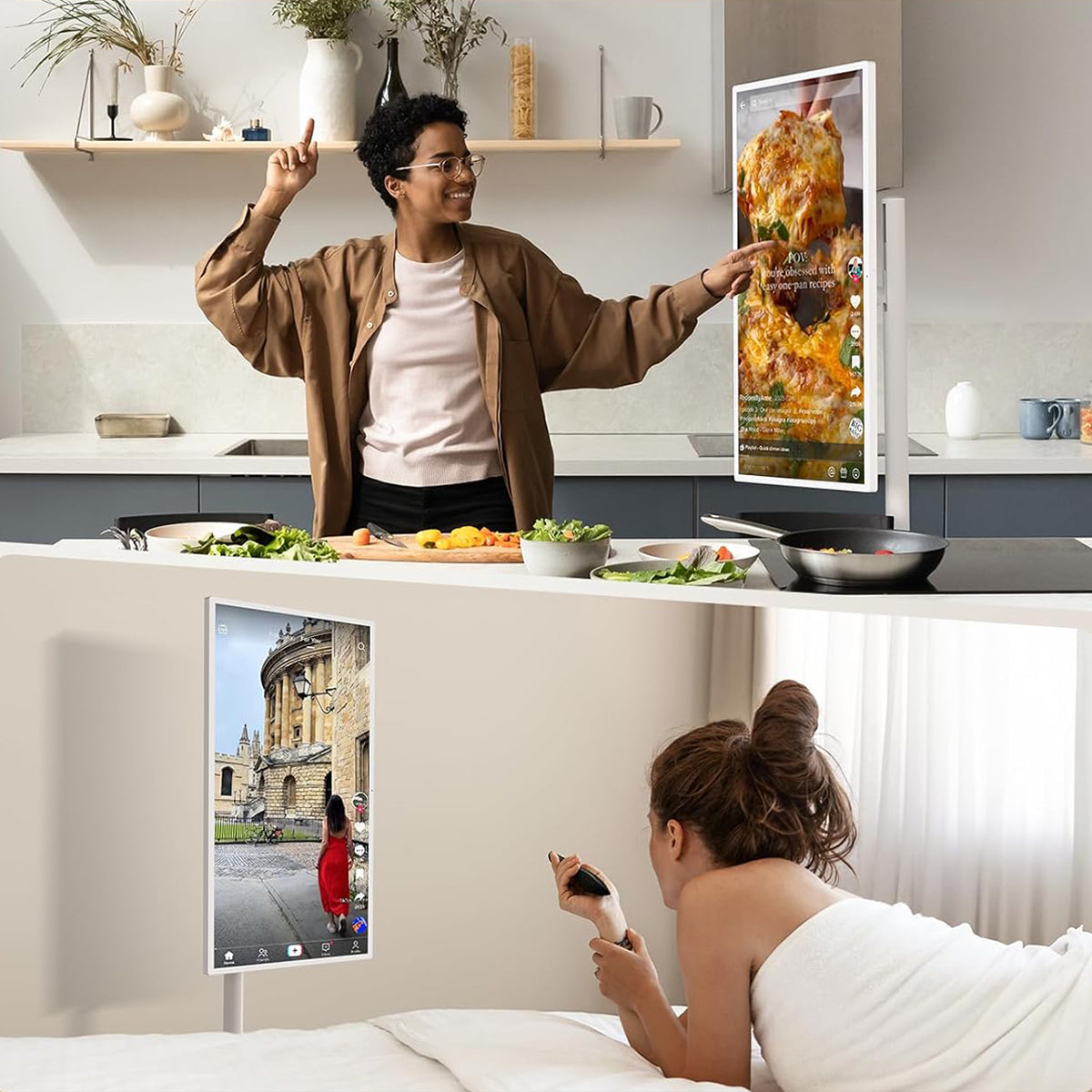
- It isn't stuck being a calendar. Same screen, different hour: recipe videos while you cook, a movie after dinner, a Zoom call for work.
- Nothing gets mounted, so nothing gets damaged, and renters don't have to ask anyone's permission.
- You own the software choice, which means you can switch apps later if one stops suiting you.

What a Family Calendar Setup Actually Needs
Before you install anything, it helps to know what separates a calendar that sticks from one everyone ignores after two weeks.
- Shared editing, so a partner can add a dentist appointment from their own phone
- Colour coding per person, because kids find their own stuff faster that way
- A layout you can read across a room, not a dense phone-sized grid
- A screen that stays awake instead of sleeping after thirty seconds
- Touch input, since a screen you can tap gets used far more than one you only look at
- Somewhere to keep chores and grocery lists, ideally in the same place
Setting Up a Digital Calendar on a Portable TV on Wheels
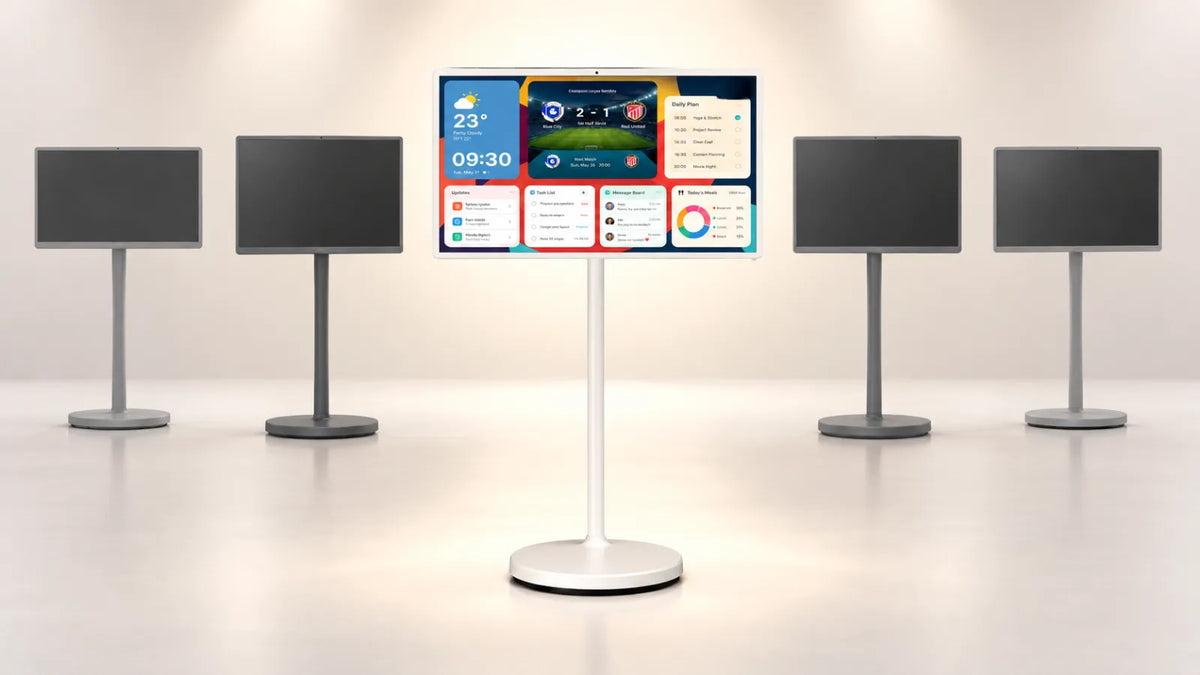
I'll use GFF AI's rolling touch screens as the example here, mostly because they run Android 15 with Google EDLA certification, so the setup is the normal Android one rather than something proprietary. The steps translate to nearly any Android screen.
1. Pick one calendar to be the source of truth
Choose the calendar your household already lives in. For most people, that's Google Calendar. Everyone keeps using their own phone app as normal, and the big screen just shows the combined result. Don't make the wall screen the master calendar, since a screen nobody can edit from the car quickly falls out of date.
2. Install the app from Google Play
Open Google Play on the screen, search for your calendar app, install it, and sign in. Because these screens are EDLA certified, you're getting the real app with real sync, not a sideloaded copy that breaks after an update. If you use Google Calendar, take a minute to share each family member's calendar with the account signed in on the display.

3. Add everyone and give them a colour
Invite each family member's account, then assign colours. This sounds fussy, and it isn't. My youngest couldn't read half the event names, but she knew orange meant her, so she'd check her own row without being asked.
4. Stop the screen from going to sleep
Head into Settings, then Display, and push the sleep timeout as far out as it goes. Turn the brightness down a little too, since a calendar doesn't need to blaze at full brightness all day. On the GFF screens, you can also flip the display between landscape and portrait with the swivel rotation, and portrait is genuinely better for a month view.
5. Park it where people actually stand
This matters more than any setting. The kitchen counter, the hallway near the door, wherever the morning bottleneck happens. Rolling screens make this easy to experiment with, so try a spot for a few days and move it if nobody looks.
6. Charge it, or don't
The 32-inch GFF model has a 20,000mAh battery rated for around eight hours, with a 90W charger. The smaller 22-inch S1-22 runs closer to three or four hours on its 7,800mAh cell. For all-day calendar duty I'd just leave it plugged in and treat the battery as freedom for weekends and patio evenings.
What Actually Changes Day to Day
The first difference I noticed was the end of a specific conversation. Nobody asks "what time is that thing on Thursday" anymore, because Thursday is right there at eye level.
Then it grew. A grocery list lives beside the calendar now. The kids' chores go up on Sunday. Since it's a touch screen, my son ticks off his own tasks, which he'd never do in an app on my phone. And when the calendar isn't needed, I roll it into the kitchen and follow a recipe on it, or park it by the treadmill.
One honest caveat: GFF's mirroring handles full-screen and local media but doesn't support AirPlay, Google Cast, or streaming cast. It's not an issue for a calendar, though it's worth knowing before you buy.
FAQ
Do I need a subscription for a family digital calendar?
No. Google Calendar is free, and Cozi has a free tier that covers shared calendars and lists. Subscriptions mostly show up with dedicated calendar hardware, which is one reason using an Android screen you already own tends to cost less over time.
Can more than one person add events?
Yes, and this is the point. Once calendars are shared, anyone can add an event from their own phone, and it appears on the display within seconds.
Will the screen burn in if I leave the calendar on all day?
These are LCD panels, so permanent burn-in isn't the concern it would be on OLED. Still, lowering brightness and letting the screen do other things during the day is sensible.
Is a touch screen worth it, or is a plain display enough?
Touch is worth it if you have kids. Tapping a chore off feels like a small win, and that's what keeps a system alive. Adults on their own can manage fine with a display-only setup.
What size screen should I get?
A 22-inch screen is plenty for a hallway or a small kitchen. If the display sits across a large open-plan room, go up to 32 inches, since a month view at a distance needs the extra room.
Give Your Household One Screen It Actually Reads
A family digital calendar isn't complicated technology. It's a shared schedule put somewhere people can't miss it, and the software to do it is free. The only real decision is which screen it lives on.
If you'd rather not buy a device that can only ever show a calendar, a portable Android touch screen makes a lot more sense. GFF AI's rolling smart screens run full Android 15 with Google Play, roll from room to room, and go from family calendar to recipe display to movie night without any of it being a workaround. Take a look at the 22-inch and 32-inch models and pick whichever suits the wall you walk past most.