

Table of Contents
Using a GFF portable TV on wheels comes down to three simple steps: build the rolling stand, attach the screen to the pole, and power it on to finish the Android setup. The whole portable TV setup only takes a few minutes, and once it's done, you can roll your screen into any room you like.
This guide covers both current GFF AI models, the 32-inch S2-32 Ultra and the 22-inch S1-22 Pro. They ship with the same parts and follow the same steps, so this page works for either one. If you own the original S1-32, our S1-32 installation guide walks you through every screw.
What's in the Box?
I'd start by clearing some floor space and laying every piece out, because a loose screw has a funny way of rolling under the couch. Both models come with:
- The touchscreen display
- A round base with built-in wheels
- The stand pole
- A screw pack
- A power adapter
- A remote control
- The user manual and quick-start card

How to Set Up Your GFF Portable TV on Wheels
Step 1: Put the Rolling Stand Together
Set the base on a soft rug or an old towel so the wheels don't drift while you work. Then slide the pole into the base and screw it in place.
Before you tighten anything, check that the mounting holes on the pole face the back, because that's where the screen will sit. Make each screw nice and tight, but don't go wild with it.
Step 2: Attach the Screen
Now lift the screen out of its carton and hold it with the back facing you. The S2-32 Ultra is a big panel, so it's much easier with a second pair of hands.
Tip the screen back a bit and hook the slot on its back over the bracket on the pole, then let it slide down until it sits tight. After that, push the power cord into the cable slot so it doesn't get caught when you move the TV.
Step 3: Power It On and Finish Setup
Plug it in and turn it on, and Android 15 will take you through the rest, like picking a language, getting on your Wi-Fi and signing in to Google. Both models are Google EDLA certified, so you get the full Play Store too.
Give the battery a full charge before you unplug it, so you know how long it really lasts.
Step 4: Pair the Remote
Open Settings, tap Connected devices, and choose Pair new device. Now press the OK and Return buttons on the remote at the same time and hold them until the light blinks. When the remote shows up in the list on screen, tap it, and you're paired.
Watch the Setup Videos
Would you rather see it done? GFF AI made a short installation video for each model:
Give It a Quick Test Before You Roll
A two-minute check now means no surprises during movie night. Run through this list:
- Touch: Tap and swipe around for a bit to check that it reacts quickly.
- Wheels: Roll it a short way, lock it, then give it a small push to see if it holds.
- Angles: Tilt it, lift it, and turn it into portrait mode, then turn it back.
- Sound and camera: Play a song, then call a friend on video so you know both work.
- Battery: Pull the plug and see if the screen stays on.

How to Use Your Portable TV on Wheels Every Day
Stream the Apps You Love
Go to the Play Store and get the apps you use most, like Netflix, YouTube, or Spotify. You can tap the screen, use your voice, or grab the remote, which is great when you're cooking and your hands are a mess.
Cast From Your Phone or Laptop
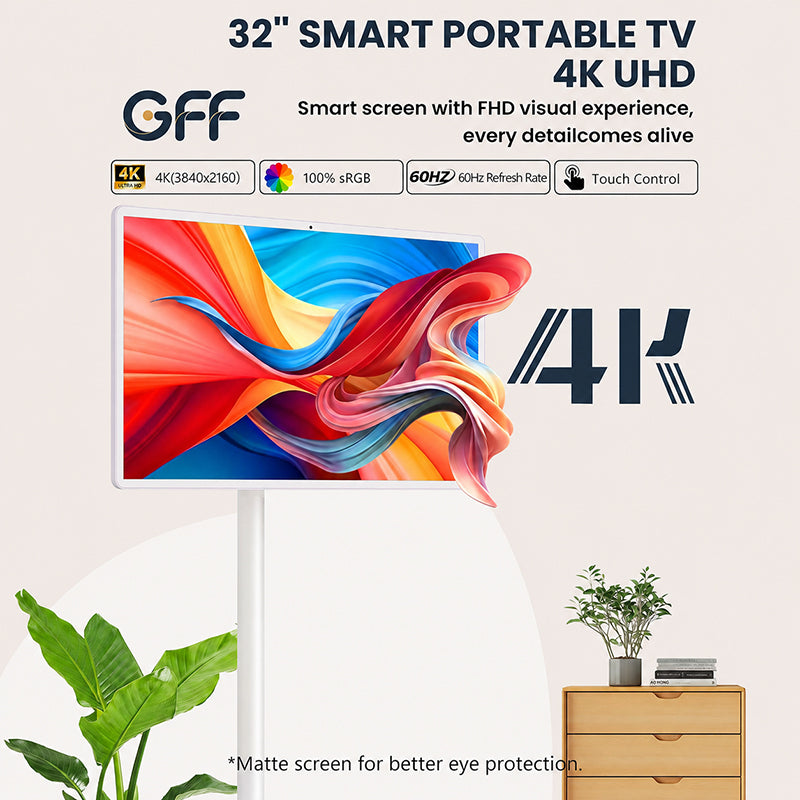
You can cast photos, slides or videos from your phone or laptop, with or without a cord. There are HDMI, USB and Type-C ports, and the S2-32 Ultra adds a 4K HDMI input for sharper laptop work and gaming.
Flip It for Recipes, Calls, and Workouts
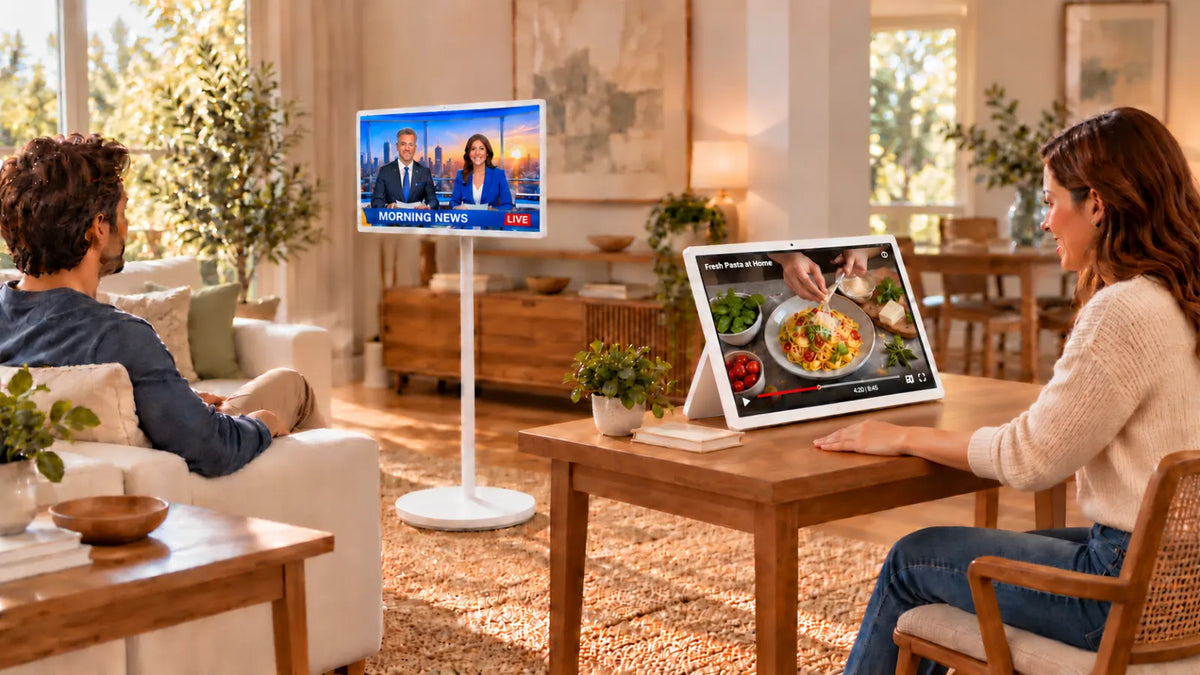
Turn the screen on its side and it works like a huge tablet. It's great for reading a recipe or scrolling your feeds, and the built-in camera and mic make Zoom, Google Meet, or Teams calls easy.
Know Your Battery
How long you can go without a cord depends on which model you've got. The S2-32 Ultra has a 20,000mAh battery that lasts up to 8 hours, and 90W fast charging fills it back up quickly. The S1-22 Pro has a 7,800mAh battery that gives you about 3 to 4 hours, which is enough for a movie or dinner prep.
FAQ
How long does a portable TV setup take?
It's quick, since the stand only needs a few screws and the Android part feels just like getting a new phone ready.
Do I need my own tools?
Nope, the screws and everything else you need come right in the box.
Can I connect an iPhone or a Mac?
Yes, and it's easy. You can cast from most phones, tablets and laptops, and the S1-22 Pro works with Android, iOS, Mac and Windows. If you'd rather use a cable, plug into HDMI instead.
Which model should I set up in a small room?
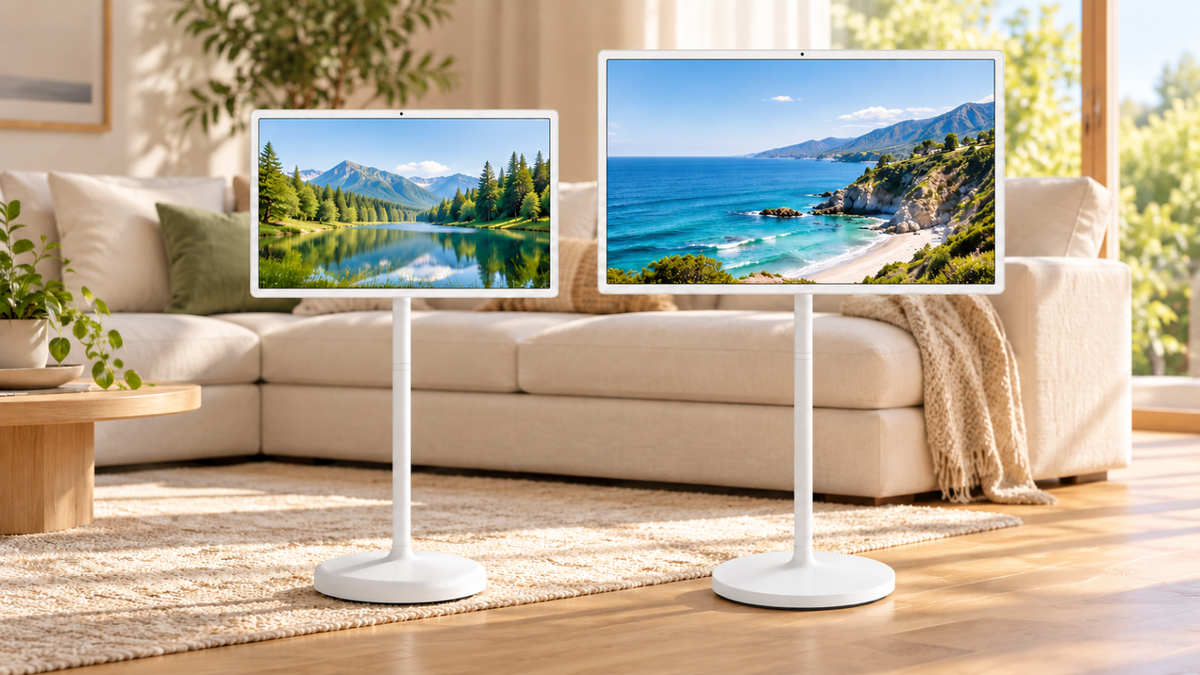
Go with the S1-22 Pro if you're short on space, because its small five-wheel stand fits well in a bedroom, kitchen or small apartment. The S2-32 Ultra is better for a living room, or if you want a bigger 4K screen and longer battery life.
Start Enjoying Your Screen Anywhere
Once your TV is built, tested and paired, you can roll it wherever you want to watch, work or cook. Still deciding? Check out the GFF S2-32 Ultra for big 4K viewing, or the S1-22 Pro if you want something small for everyday use. And if you get stuck, the GFF AI support team is always happy to help.